
Integration Steps for JavaScript SDK until v1.7.x
Understand steps to integrate JavaScript SDK until v1.7.x.
Note:
Effective 29th Jan 2026, downloading JavaScript SDK directly from the Mobile & Web Asset page under the Push Notifications section after configuring Push in the Webex Connect platform is not supported. With this release, only the imi-environment.js configuration file is available for download from the Webex Connect platform. The JavaScript SDK v1.8.0 is now publicly available and provided as a minified package. We recommend upgrading to the latest JavaScript SDK integration process. This ensures that, if any future updates are introduced to the SDK, you will only need to integrate the updated minified SDK, with no changes required to existing SDK methods or APIs. For details on the integration process, please refer to the JavaScript Quick Start Guide for updated integration steps.
If you have already downloaded the SDK from the Push Notification section, please follow the below steps to integrate the JavaScript SDK into your website:
-
Unzip the downloaded SDK and add contents to your project
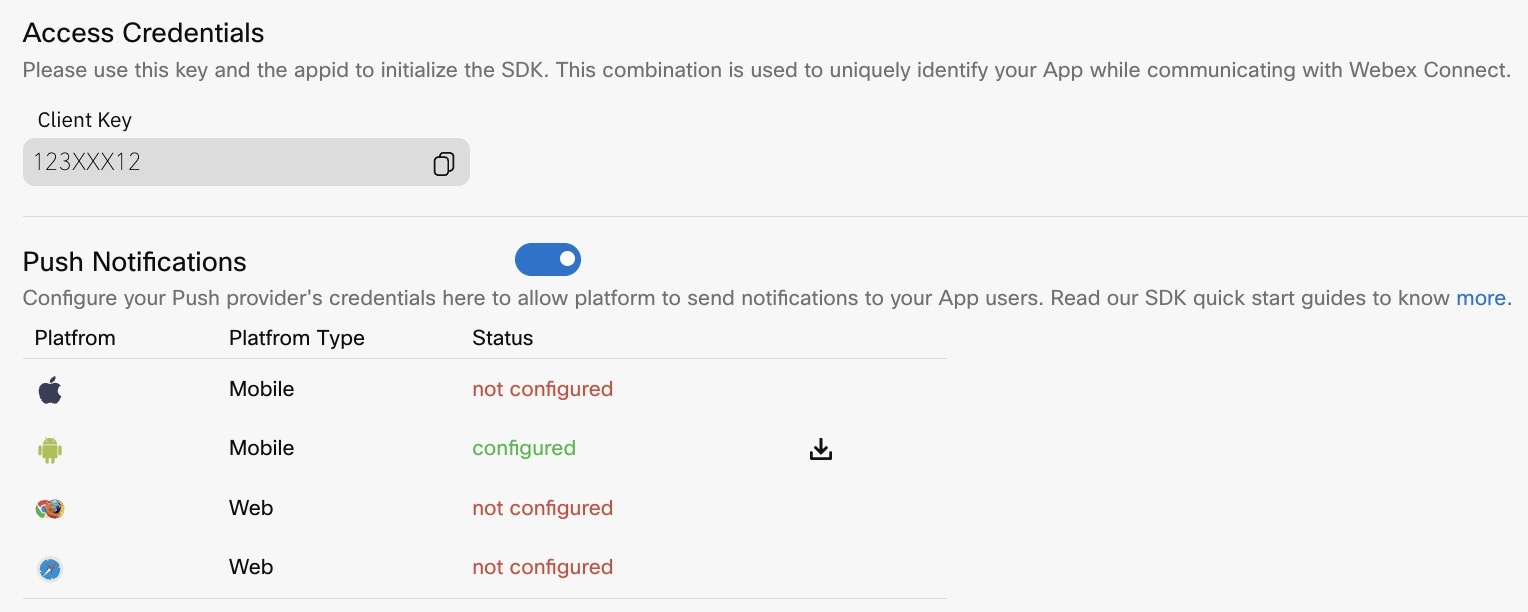
Downloaded SDK from Push Notification Section
-
Import below files in the tag
<script src="assets/js/jquery.min.js"></script>
<script src="https://www.gstatic.com/firebasejs/11.0.1/firebase-app-compat.js"></script>
<script src="https://www.gstatic.com/firebasejs/11.0.1/firebase-messaging-compat.js"></script>
<script type="text/javascript" src="assets/js/mqttws31.js"></script>
<script type="text/javascript" src="assets/js/aes.js"></script>
<script type="text/javascript" src="assets/js/imi-environments.js"></script>
<script type="text/javascript" src="assets/js/IMIClient.js"></script>
Note
Here, sdk is in folder “assets”, please update to project specific location
For steps 2 to 6 of the integration process, refer to the Startup plugin section.
Updated 3 months ago