
JavaScript SDK Quickstart Guide
Getting Started
- Add Web Application in Webex Connect
- Setup FCM for Chrome and Firefox Browsers
- Download and Integrate JavaScript SDK in your Website
- Code Integration
1. Add Web Application in Webex Connect
To view how to create Web App Asset, visit Web App Asset in Webex Connect
2. Setup FCM for Chrome and Firefox Browsers
Please follow this link to learn how to set up Firebase Cloud Messaging (FCM) for Chrome and Firefox browsers.
3. Download and Integrate JavaScript SDK in your Website
To download and integrate the JavaScript SDK into your website, please refer to the detailed instructions provided here.
4. Code Integration
Here is a summary of the process required to implement Live Chat Messaging.
- Include SDK
- Startup plugin
- Check if user is already registered
- Register user
- Register Listener for Live Chat Messaging
- Connect
- Create a thread
- Send message using publishMessage
1. Include SDK
If you have downloaded the SDK files up to version v1.7.x, Please refer to the Include SDK section on Integration Steps for JavaScript until v1.7.x.
How to integrate the latest JavaScript SDK
- To download the JavaScript SDK, go to GitHub page. Download and extract
dist.zip.- Create an
assets/jsfolder in your project. - Copy
webex-connect-sdk.min.jsandimi-environment.jstoassets/js/folder.
- Create an
- Move the service worker file
sw.min.jsto root of your project. You can specify a subfolder if needed as per steps outlined in Managing Assets page. - Include dependencies.
<script src="https://code.jquery.com/jquery-1.12.4.js"></script> - For Push Notifications, include Firebase SDK files
- Include supported Firebase SDK files
<script type="text/javascript" src="https://www.gstatic.com/firebasejs/11.1.0/firebase-app-compat.js"></script> <script type="text/javascript" src="https://www.gstatic.com/firebasejs/11.1.0/firebase-messaging-compat.js"></script> - Include
manifest.jsonfile.
Copy the extractedmanifest.jsonfromdist.zipinto the sameassets/manifest/folder./assets/manifest/manifest.json
- Include supported Firebase SDK files
- Include JavaScript SDK files in your HTML page:
<script src="assets/js/imi-environments.js"></script>
<script type="text/javascript" src="assets/js/webex-connect-sdk.min.js"></script>
imi-environments.js file is available from the Downloads section using Webex Connect UI. Refer to Create a Mobile App Asset in Webex Connect section for more information.
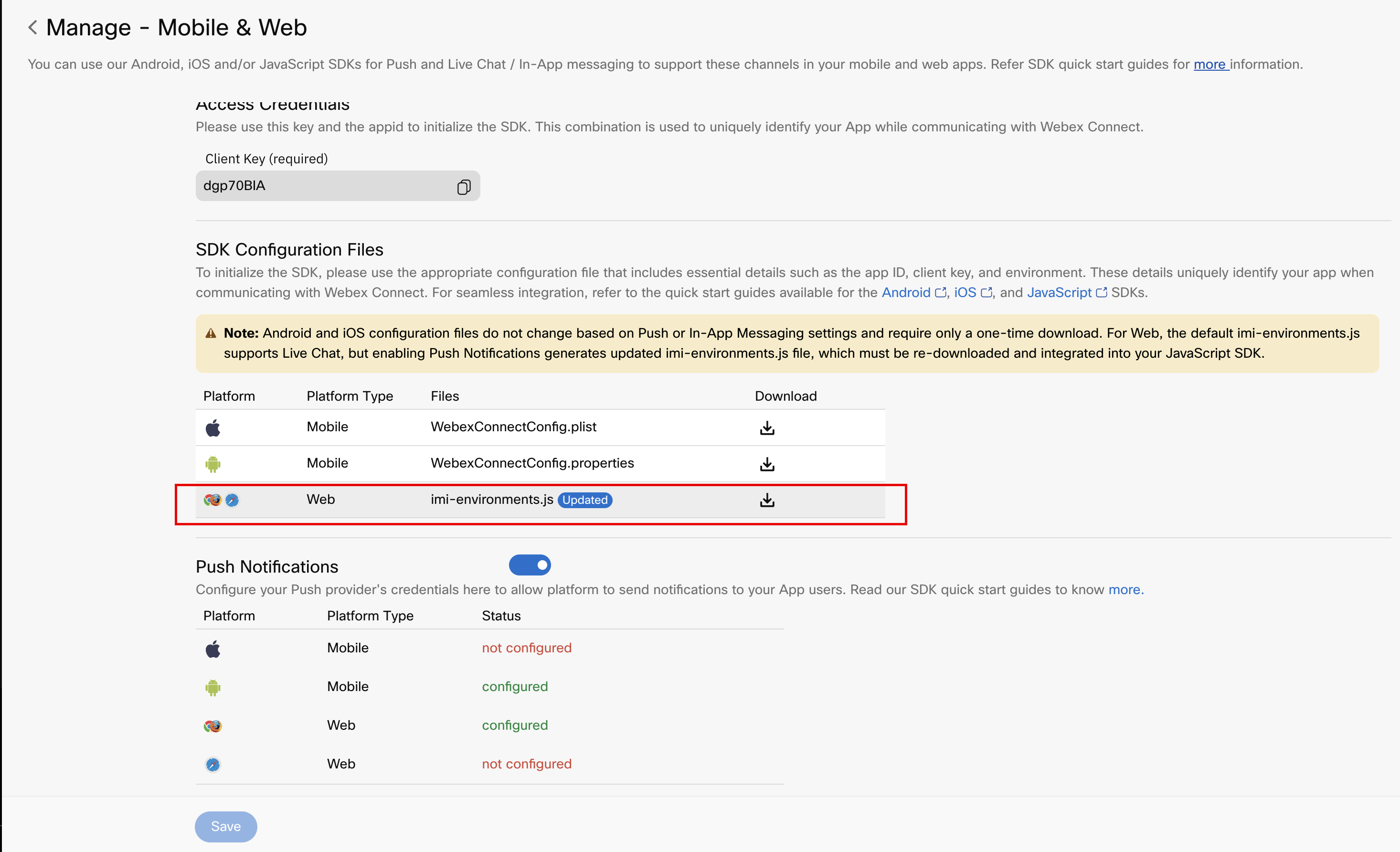
Download the imi-environemnt.js file
Migrate from previous SDKs
If you have downloaded the SDK files up to version v1.7.x, please refer to the Migrate from previous SDKs page for more information.
2. Startup plugin
In Browser Console, verify if the plugin is available by typing IMI. It should output this:

Screenshot of Startup plugin.
Follow below step to setup Live Chat Messaging
Call plugin’s startup() method:
IMI.IMIconnect.startup();
Note
Refer Managing Assets for managing multiple assets and paths.
3. Check if user is already registered
IMI.IMIconnect.isRegistered()
4. Register user
var userID = 1;
var deviceID = userID + new Date().getTime(); //any random no.
var deviceProfile = new IMI.ICDeviceProfile(deviceID, userID);
var registerCallback = {
   onSuccess: (msg) => {
      console.log(msg);
   },
   onFailure: (err) => {
      console.log(err);
   },
};
IMI.IMIconnect.register(deviceProfile, registerCallback);
Note
The SDK automatically unregisters the app user if the app isn't opened for over 40 days. To ensure a seamless user experience, always check if the user is registered by calling isRegistered whenever the app launches, and if not registered, register the user with register. For further details of the profile clean up process, including how profiles are deemed inactive, please see this article.
5. Register Listener for Live Chat Messaging
var msgCallBack = {
   onConnectionStatusChanged: (statuscode) => {
      console.log('onConnectionStatusChanged to', statuscode);
   },
   onMessageReceived: (message) => {
      console.log('onMessageReceived ', message);
   }
};
var messaging = IMI.ICMessaging.getInstance();
messaging.setICMessagingReceiver(msgCallBack);
6. Connect
In registration onSuccess callback, add below code:
var messaging = IMI.ICMessaging.getInstance();
if (!messaging.isConnected())
   messaging.connect();
Create a thread
createThread(title) {
   var title = title || "New Conversation";
   var thread = new IMI.ICThread();
   thread.setTitle(title);
   thread.setStatus(IMI.ICThreadStatus.Active);
   thread.setType(IMI.ICThreadType.Conversation);
   var messaging = IMI.ICMessaging.getInstance();
   messaging.createThread(thread, createThreadCallBack);
}
createThreadCallBack = {
   onSuccess: (threadObj) => {},
   onFailure: (err) => {

   },
};
Send message using publishMessage
var publishMessageCallback = {
   onSuccess: function (msg) {
      console.log("message sent", msg);
   },
   onFailure: function (errormsg) {
      console.log("failed to send message", errormsg);
   },
};

function publish() {
   var text = "Sample message text";
   var message = new IMI.ICMessage();
   message.setMessage(text);
   message.setThread(icThreadObj);
   var messaging = IMI.ICMessaging.getInstance();
   messaging.publishMessage(message, publishMessageCallback);
}
To set up push notifications, please follow this link: Sending Push Messages to Customers
Updated 3 months ago